Configure macOS Firewall settings in the Library
The macOS firewall allows administrators to control network traffic on your managed macOS devices. KACE Cloud provides access to the macOS firewall settings, enabling administrators to optimize and secure network traffic on target devices. You can create and manage your organization's macOS firewall settings in the Library. For example, you can allow or block certain apps from accessing the network through the macOS firewall.
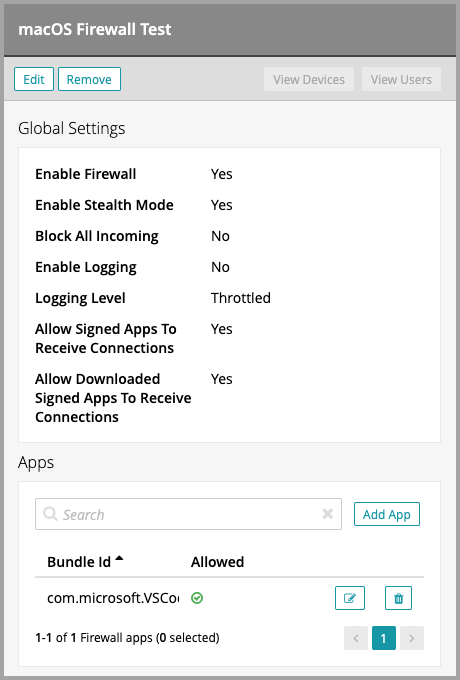
To create or edit macOS Firewall settings:
- Select the Libraries tab in top navigation.
- Click Security.
- Complete one of the following steps:
- To create a new macOS Firewall configuration, choose Add New > macOS Firewall.
- To edit an existing macOS Firewall configuration, select it in the list, and in the right panel, click Edit.
-
In the macOS Firewall Configuration view that appears in the right panel, provide the following information:
Option Description Name The name of the macOS Firewall configuration. Description A short description of the macOS Firewall configuration. Enable Firewall When this option is selected, it enables the macOS firewall. When a macOS firewall configuration is applied to a macOS device, the firewall settings are locked and cannot be edited on that device. Enable Stealth Mode When selected, enables stealth mode. Stealth mode stops malicious users from discovering information about devices.
Block All Incoming Connections When selected, enables or disables blocking of all incoming connections. Selecting this option prevents all sharing services, such as File Sharing and Screen Sharing from receiving incoming connections. The system services that are still allowed to receive incoming connections are:
- configd, that implements DHCP and other network configuration services,
- mDNSResponder, that implements Bonjour, and
- racoon, that implements IPSec.
To use sharing services, make sure this option is cleared.
Enable Logging When selected, enables the macOS firewall logging. This feature is available in macOS 12 and later. Logging Level When firewall logging is enabled, this value configures the level of logging. This is available in macOS 12 and later. Allow Built-in Apps To Receive Connections When selected, it automatically allows built-in software to receive incoming connections. This is available in macOS 12 and later. Allow Downloaded Signed Apps To Receive Connections When selected, it automatically allows downloaded software signed with a valid certificate to receive incoming connections. This is available in macOS 12 and later. - Add an app to this macOS Firewall Configuration, and indicate if you want it to be allowed or blocked through the firewall, as required.
- In the macOS Firewall Configuration view, click Add App.
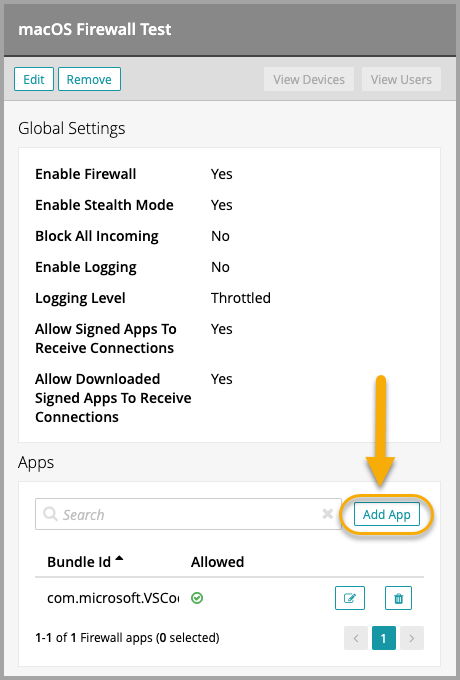
The Add Firewall App view appears.
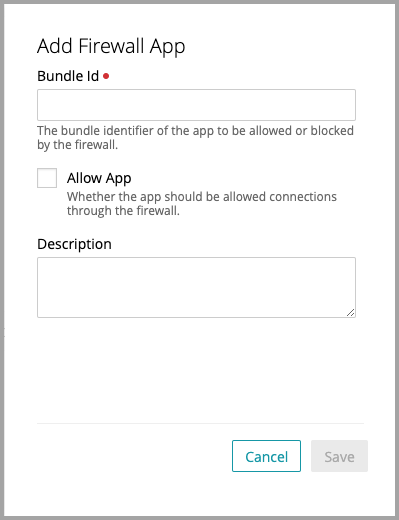
- In the Add Firewall App view, provide the following information:
Option Description Bundle ID The bundle ID of the app. Allow App Indicates if the app is allowed or blocked through the macOS firewall. Description A short description of the app. - Add more apps to the macOS Firewall configuration, as required.
- In the Add Firewall App view, click Save.
- In the macOS Firewall Configuration view, click Add App.
- In the macOS Firewall Configuration view, click Save.